


How to Make Laptop Faster: 15 Easy Ways to Fix a Slow Laptop in 2026

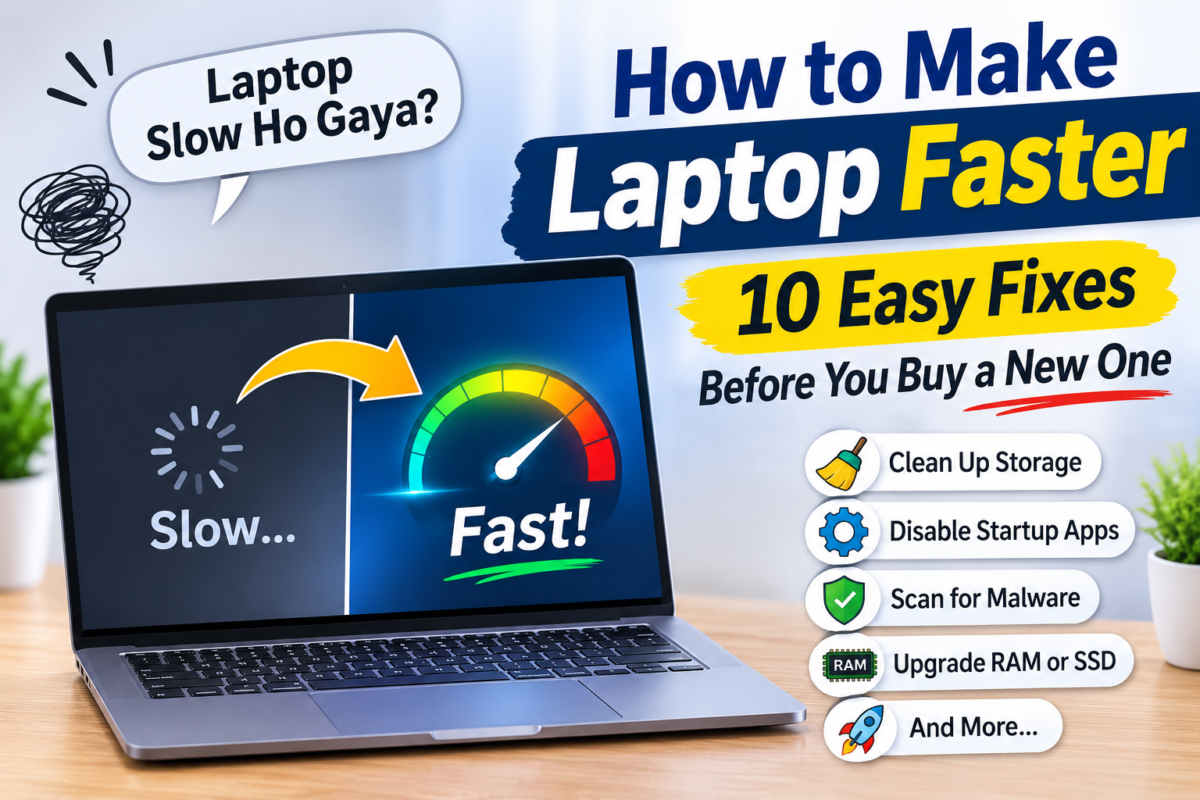
How to Make Laptop Faster ? Start with the free fixes: restart, update, close or remove what you do not need, trim startup apps and free up disk space. If the laptop still crawls, the cause is usually hardware: too little RAM, an old hard disk or a fan clogged with dust. Adding RAM or switching to an SSD often does more than any software trick, and a laptop that is five or six years old may simply be ready for retirement.
You know the feeling. You click a folder and wait. You open a browser and the screen freezes for a few seconds. You start a video call and the fan roars like it is about to take off. A laptop running slow is one of the most common frustrations we hear, and the good news is that it is usually fixable without spending a lot of money.
This guide explains how to make a laptop faster in simple, practical steps you can follow yourself. We start with the quick, free fixes, move on to cleaning and settings, and finish with hardware upgrades. Along the way you will see how to speed up a slow laptop whether it is a college laptop, an office machine or a family computer, and how to tell when the real answer is a new one.
Well Known Computers has been helping customers in Kanpur with laptops and computers since 2000, and we work in partnership with Acer, HP, Lenovo, ASUS and Dell. The advice below comes from the kinds of problems people bring to a computer shop every day.
Why Is My Laptop So Slow? The Most Common Causes
Before you fix anything, it helps to understand what is going on. When people ask why my laptop is so slow, the answer is almost always one or more of these.
- Too many programs starting with the laptop. Each one takes memory and processing power before you have even opened anything.
- Low free storage. When your drive is nearly full, the laptop has little room to work and slows down.
- Not enough RAM. If the memory is full, the laptop has to juggle tasks and everything feels sticky.
- An old hard disk. Traditional hard disks are far slower than SSDs, and they wear out with age.
- Heat and dust. A blocked fan and dusty vents cause the laptop to slow itself down to avoid overheating.
- Malware or unwanted software. Hidden programs can quietly use your processor and internet connection.
- Outdated software. Old updates or drivers can cause bugs and poor performance.
- Browser clutter. Dozens of tabs and extensions use a surprising amount of memory.
- Age. After several years, batteries, drives and processors simply cannot keep up with modern software.
The steps below match these causes one by one, so you can work through them in order.
How to Make Laptop Faster: Quick Checklist
Short on time? Here are the fastest tips to make laptop faster, in the order we suggest trying them:
- Restart the laptop.
- Install pending updates.
- Close heavy programs using Task Manager.
- Turn off unnecessary startup apps.
- Uninstall programs you no longer use.
- Free up storage space.
- Clean up your browser.
- Scan for malware.
- Switch to a better power setting.
- Reduce visual effects.
- Clean the vents and keep it cool.
- Add more RAM if your laptop allows it.
- Replace an old hard disk with an SSD.
- Limit background apps and sync.
- Reset the system as a last resort.
Let us go through each one.
How to Fix a Slow Laptop: Step-by-Step
1. Restart your laptop
It sounds too simple, but it works more often than you would think. Many people put their laptop to sleep for weeks without ever shutting down. Over time, programs leave behind temporary data and small errors build up. A full restart clears the memory and gives the laptop a clean start. Do this at least once every few days. Note that closing the lid or choosing sleep is not the same as restarting.
2. Install system and driver updates
Updates fix bugs, improve security and sometimes improve speed. Check for updates for your operating system and install any that are waiting. If you are comfortable doing so, also look at updates for graphics and other drivers from your laptop maker’s support page. Always keep your laptop plugged in while updating, and do not switch it off in the middle.
3. Find the programs that are slowing you down
The Task Manager is your best friend when diagnosing a slow laptop. Press Ctrl + Shift + Esc to open it. Look at the columns for CPU, Memory and Disk. If one program is using a large share, especially while you are not actually using it, that is a likely culprit. Select it and choose End Task. Be careful not to end anything you do not recognize, as some entries are important system processes. If you are unsure, search for the name or ask our team.
4. Turn off unnecessary startup apps
This is one of the best ways to speed up a slow laptop, particularly if it takes a long time to become usable after you switch it on. In Task Manager, open the Startup tab. You will see programs that launch automatically along with their impact on startup time. Disable the ones you do not need immediately, such as chat apps, game launchers, update helpers and printer tools. Do not disable your security tool or touchpad and keyboard utilities. You can still open any disabled program manually when you need it.
5. Uninstall programs you no longer use
Over the years, laptops collect trial software, old games, toolbars and apps that came pre-installed but never get used. Open your list of installed apps, sort by size or date and remove the ones you do not need. This frees storage space and removes background processes. Avoid installing pirated or cracked software, because it often brings hidden programs that slow down and endanger your laptop.
6. Clean up laptop storage
If you are wondering how to clean up laptop storage, start with the biggest wins first. As a rule of thumb, try to keep at least 15 to 20 percent of your drive free so the system has room to breathe.
- Empty the Recycle Bin. Deleted files stay on your drive until you empty it.
- Delete temporary files. Use your system’s built-in storage or cleanup tool to remove temporary files, old update files and thumbnails.
- Check the Downloads folder. It quietly fills with installers, PDFs and forgotten files.
- Move large files. Photos, videos and old projects can move to an external drive or cloud storage.
- Find the biggest files. Your storage settings can show what is using the most space.
- Remove duplicate files. The same photos and documents often get saved more than once.
Before deleting anything important, make a backup. Note that you should not defragment an SSD. That is only useful on an old hard disk.
7. Clean up your browser
For many people, the browser is where the laptop slowness actually happens. Every open tab uses memory, and extensions run in the background all the time.
- Close tabs you are not reading. If you want to keep them, bookmark them.
- Remove extensions you do not use.
- Clear cached files and old browsing data occasionally.
- Keep the browser updated.
- If one website feels slow, try it in a different browser to see whether the problem is the browser or the site.
8. Scan for malware
If your laptop slowed down suddenly, shows strange pop-ups, opens pages you did not choose or has a fan that never stops, scan it for malware. Use the security tool already built into your system or a trusted security program, and run a full scan, not just a quick one. Do not install several security programs at once, since they can fight each other and make the laptop slower still.
9. Switch to a better power setting
Laptops have power modes that balance battery life against speed. If your laptop is plugged in and you want maximum performance, choose a Best performance or similar mode in the power settings. On battery, the laptop usually slows itself down on purpose to save charge, so do not be surprised if it feels slower when unplugged. Also check that your charger is the correct one for the laptop, since a weak or wrong charger can affect performance.
10. Reduce visual effects
Animations, shadows and transparency look nice but use graphics and memory. On an older laptop, turning them down can make windows open and close faster. Search for the performance or visual effects option in your settings and choose the option that adjusts for best performance, or untick the effects you do not care about. You may not notice the difference visually, but you will notice it in speed.
11. Keep your laptop cool and clean the vents
Heat is a silent speed killer. When the processor gets too hot, it slows itself down to protect itself, a behaviour called thermal throttling. Signs of trouble include a loud fan, a very hot base and sudden slowdowns during heavy tasks.
- Use the laptop on a hard, flat surface. Beds, sofas and pillows block the air vents.
- Consider a laptop stand or cooling pad.
- Gently clean the vent openings with a soft brush or short bursts of air, with the laptop switched off.
- Do not open the laptop yourself if it is under warranty, because that can void it.
- For an older laptop that still overheats, a technician can clean the fan and replace dried thermal paste. This is often an inexpensive way to bring performance back.
12. Add more RAM
If your laptop has 4 GB of RAM, you will feel it struggling with modern software and browsers. 8 GB is a sensible minimum today, and 16 GB is comfortable for multitasking. Not every laptop allows upgrades, because some have memory fixed to the board. Check your model’s specifications or ask our team before buying anything. This is one of the most effective ways to improve laptop performance on an otherwise healthy machine. For many people it is the missing piece in how to make a laptop faster once the software fixes have run out.
13. Replace an old hard disk with an SSD
If your laptop still uses a traditional hard disk, switching to an SSD is the single biggest upgrade you can make. The laptop starts in a fraction of the time, programs open quickly and everything feels responsive. Many people describe the difference as getting a new laptop. You will need to move your files or reinstall the operating system, so it is best to have a technician do it. Talk to us about the right SSD size for your needs; 512 GB suits most people.
14. Limit background apps and cloud sync
Cloud storage, messaging apps, update checkers and many other programs keep running in the background. Review which ones really need to run all the time. Pause cloud sync during heavy work, turn off notifications you do not need, and check whether any app is constantly syncing large folders.
15. Reset or reinstall as a last resort
If your laptop is still slow after everything above, a fresh start can help. Resetting the system removes accumulated clutter and returns the laptop to a clean state. Back up all important files first, because a reset can delete your data. Make a list of the programs you need and reinstall only those. If you are not confident about doing this alone, ask for help rather than risk losing your files.
Slow Laptop Troubleshooting by Symptom
Still not sure what is wrong? This table links common symptoms to the likely cause and the best first step. Think of it as a laptop slow problem solution you can keep handy.
| What you notice | Likely cause | Try this first |
|---|---|---|
| Takes minutes to start | Too many startup apps, old hard disk | Disable startup apps; consider an SSD |
| Slow only when many tabs are open | Not enough RAM or too many extensions | Close tabs, remove extensions; add RAM |
| Fan is loud and base is hot | Dust, blocked vents, heavy background use | Clean vents, use a hard surface, check Task Manager |
| Freezes randomly | Low storage, failing drive or malware | Free space, scan for malware, back up your files |
| Slow after an update | Pending drivers or background update work | Restart and wait, then check for driver updates |
| Slow only when unplugged | Battery power-saving mode | Change the power mode or plug in |
| Slow for everything, even after cleanup | Old hardware | Upgrade RAM or SSD, or consider a new laptop |
How to Improve Laptop Performance With Upgrades
Once the software side is clean, hardware upgrades are where real improvement comes from.
| Upgrade | Benefit | Best for |
|---|---|---|
| SSD in place of hard disk | Much faster start and loading | Any laptop still using a hard disk |
| More RAM | Smoother multitasking | Laptops with 4 GB or 8 GB used for heavy work |
| Fresh thermal paste and fan cleaning | Cooler, steadier performance | Older laptops that overheat |
| New battery | Better performance on battery | Laptops that shut down or throttle when unplugged |
One caution: an upgrade only makes sense if the rest of the laptop is worth keeping. If the processor is very old, a lot of money on upgrades may not be wise.
Is It Time to Buy a New Laptop?
Sometimes the honest answer to a slow laptop is a new one. Consider replacing your laptop if:
- It is more than five or six years old and struggles even with basic tasks.
- It cannot run the software you now need for study or work.
- The cost of upgrades is close to the price of a decent new laptop.
- The battery, screen or keyboard is failing, along with the speed.
- You have already tried the steps above and nothing helps.
If you are heading that way, read our guide on how to choose a laptop so you buy the right specifications this time. You can also compare options in our Best Laptop Brand in India guide.
Laptop Optimization Tips: Habits That Keep It Fast
Keeping a laptop fast is easier than making a slow one fast again. If you want to know how to make laptop faster for good, a few small habits matter more than any one-time fix.
- Restart regularly, at least every few days.
- Keep your drive at least 15 to 20 percent free.
- Install updates when they appear.
- Install only what you need, and only from trusted sources.
- Review startup apps every few months.
- Keep tabs and extensions under control.
- Back up your files to an external drive or cloud storage, so a clean-up never risks your data.
- Dust the vents once or twice a year, and more often if your home or office is dusty.
- Use a proper bag and stand to protect the laptop and its airflow.
- Do not ignore early warning signs such as unusual noises, heat or frequent freezing.
Common Mistakes That Make a Laptop Slower
- Installing speed booster or cleaner apps. Many of them promise miracles and then add their own background processes and pop-ups. The built-in tools are usually enough.
- Running more than one security program at a time. They compete and slow everything down.
- Deleting system files to free space. Only delete files you recognize and that are safe to remove.
- Never restarting. Weeks of sleep mode build up problems.
- Using pirated software. It often carries hidden programs and security risks.
- Keeping the laptop on soft surfaces. Blocked vents mean heat, and heat means slowness.
- Ignoring storage warnings. A nearly full drive makes everything worse.
- Buying upgrades without checking compatibility. RAM and SSD types vary between laptops.
How Well Known Computers Can Help
Most slow laptops can be revived with the steps above. But if you would rather not do it alone, or if you suspect a hardware problem, it helps to have a local team you can talk to. Since 2000, Well Known Computers has been helping people in Kanpur with their laptops and computers. When you wonder how to make a laptop faster without risking your data, we can look at your laptop, tell you honestly what is wrong and suggest the most sensible fix.
- Advice on RAM and SSD upgrades suited to your laptop
- Guidance on cleaning, cooling and general maintenance
- Laptops from Acer, HP, Lenovo, ASUS and Dell if it is time for a new one
- Accessories such as laptop stands, cooling pads, external drives, webcams and bags from several trusted brands
Visit our store: [STORE ADDRESS] | Call / WhatsApp: +91 93358 37020
Frequently Asked Questions
How to make laptop faster without spending money?
Restart it, install updates, close heavy programs in Task Manager, disable unnecessary startup apps, uninstall unused software, free up storage and clean up your browser. These steps cost nothing and often make a clear difference.
Why is my laptop so slow suddenly?
A sudden slowdown is often caused by a background program using many resources, a recent update, a nearly full drive, overheating or malware. Check Task Manager, restart, free up space and run a malware scan.
How to speed up a slow laptop with 4 GB RAM?
Close unused tabs and programs, disable startup apps, keep the drive tidy and use a lighter browser setup. If your laptop supports it, upgrading to 8 GB of RAM and moving to an SSD will help the most.
How to increase laptop speed for gaming or editing?
Set a high-performance power mode, keep drivers updated, close background apps and keep the laptop cool. For serious gaming or editing, more RAM, a fast SSD and a graphics card capable of your software matter more than any setting.
Does adding an SSD really make a laptop faster?
Yes. If your laptop uses a hard disk, an SSD is often the biggest single improvement. Starting up, opening programs and loading files all become much quicker.
Is it safe to use laptop cleaner or booster apps?
We suggest being careful. Many add unnecessary background processes or unwanted pop-ups. The built-in cleanup tools and the steps in this guide are usually enough.
How often should I clean my laptop?
Clean up storage and startup apps every few months, and dust the vents once or twice a year. In dusty places, do it more often.
Laptop slow ho gaya hai, kya karein?
Sabse pehle laptop restart karo, updates install karo, Task Manager mein heavy programs check karo, startup apps band karo aur storage khali karo. Phir bhi slow ho to RAM ya SSD upgrade ke baare mein store par pooch lo.
Conclusion
Most slow laptops are not broken. They are overloaded, overheated or simply asking for a small upgrade. Work through the steps above in order, starting with the free ones, and you will fix a slow laptop more often than not. If you are still stuck wondering how to make laptop faster, or if your laptop has reached the age where a new one makes more sense, visit Well Known Computers in Kanpur or call us at +91 93358 37020. A quick look at your laptop can save you hours of guessing. https://share.google/AAJp6VcFdyXRc0fXq