
Best Webcam for Online Classes and Work from Home in 2026: How to Choose


For most students, teachers and remote workers, a 1080p (Full HD) webcam with autofocus, decent low-light performance and a built-in microphone is the safest choice in 2026. A basic 720p model is fine for occasional calls on a tight budget. Spend more only if you teach, present or record often. Whatever you buy, a window or lamp in front of you will improve your picture more than any upgrade.
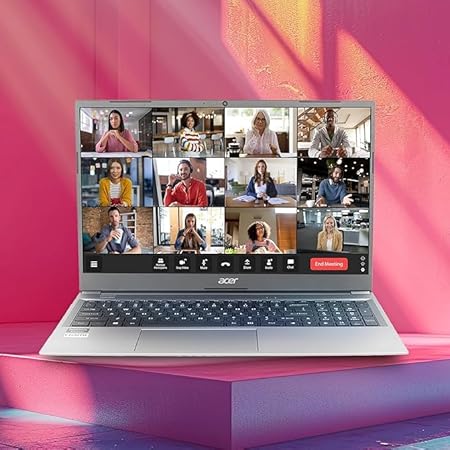
Video calls are no longer something we do now and then. Classes, tuition batches, client meetings, interviews and even family catch-ups all happen on camera, and the picture you send says something about you. A dark, grainy face that freezes in the middle of a sentence makes even a great explanation hard to follow.
Most laptops come with a camera built in, but it is usually the part the maker saved money on. That is why many people start searching for the best webcam for online classes after a few weeks of blurry video. This guide explains, in plain language, what actually makes a webcam good, how to match one to your use, and how to set it up so you look clear and sound clear. There is no jargon wall and no pressure to buy the most expensive one.
Well Known Computers has been serving customers in Kanpur since 2000. We work in partnership with Acer, HP, Lenovo, ASUS and Dell for laptops, and we also stock webcams and accessories from several other trusted brands. So whether you are buying a camera for the laptop you already own or planning a full setup, the notes below come from that everyday experience of matching people to products.
Do You Really Need an External Webcam?
Not everyone does, so let us start there.
Your built-in camera may be enough if:
- You join video calls only now and then.
- Your laptop is fairly new and the picture already looks sharp in a bright room.
- You mostly keep your camera off and only switch it on briefly.
An external webcam is worth it if:
- You attend or take classes daily and your face looks dark, soft or grainy.
- Your laptop camera sits at a bad angle, usually pointing up at your chin.
- You use a desktop computer or a monitor that has no camera at all.
- You work from home and join client or team meetings regularly.
- You use your laptop closed and connected to a bigger screen.
- You teach, give presentations or record lessons.
That last point about the angle is underrated. A separate webcam can sit at eye level on top of a monitor, which looks far more natural than a camera looking up from a laptop on a desk.
What Makes a Webcam Good? The Features That Matter
Spec sheets list a dozen features, but only a handful change what the other person sees. Here they are, in order of importance.
Resolution: 720p, 1080p or 4K
Resolution is the number of pixels in the picture. 720p (HD) is acceptable for casual calls. 1080p (Full HD) is the sweet spot, giving a noticeably sharper face and clearer writing if you hold up a page. 4K sounds impressive, but many meeting apps compress video anyway, and your internet connection has to carry the extra data, so most people will not see the benefit. Choose 4K only if you record or stream content.
Frame rate
Frame rate decides how smooth movement looks. 30 frames per second is standard and perfectly good for classes and meetings. 60 frames per second looks smoother for streaming or fast gestures, but it needs good lighting and a stronger connection.
Low-light performance
This is where cheap webcams struggle. In a dim room the picture turns grainy, dull or blurry. Look for a model that mentions a good sensor, automatic light correction or low-light handling. In practice, a lamp placed in front of you helps more than any specification, but a better sensor gives you a head start.
Autofocus
With autofocus, the camera keeps your face sharp when you lean forward or move. Fixed-focus cameras are cheaper and fine if you sit still, but teachers and presenters who move around will be happier with autofocus.
Field of view
This is how wide the camera sees. A narrower view (roughly 65 to 80 degrees) frames just you, which suits one person at a desk. A wider view (around 90 degrees) fits two people or a small group, or shows a whiteboard behind you. Some webcams let you adjust it.
Built-in microphone
People forgive a slightly soft picture, but they do not forgive bad audio. A webcam with a decent built-in microphone is a good starting point for a quiet room. If you take many calls in a noisy house, a headset with a microphone will serve you better.
Connection and compatibility
Most webcams connect by USB and work as soon as you plug them in, with no extra software. Check that the plug fits your computer, since some newer laptops have only USB-C ports. If so, pick a webcam with a USB-C plug or keep an adapter handy. Also confirm that it works with your operating system and your meeting apps.
Privacy cover
A small sliding shutter over the lens is a simple way to stay private when the camera is not in use. It costs the maker very little and gives you real peace of mind.
Mounting
Check that the clip fits the thickness of your monitor or laptop screen. Many webcams also have a standard tripod thread, which lets you place the camera on a small stand when you want a better angle.
Best Webcam for Online Classes: What Students and Teachers Need
Online classes put different demands on a webcam from office meetings, so it helps to separate the two.
For students:
- A 1080p webcam with a microphone is the simplest choice. You will sit still most of the time, so fixed focus is acceptable if the budget is tight.
- Good low-light handling matters because many students study in evenings or in a room with a single tube light.
- A privacy cover is reassuring for shared family computers.
- If you take online tests, check your institute’s rules. Some ask for a stable, well-lit camera that shows your face and desk clearly.
For teachers and tutors:
- Choose autofocus so the picture stays sharp when you lean in to point at the screen.
- A wider field of view helps when you want to show a small whiteboard or notebook.
- Sound matters as much as picture. If students must hear every word, add a headset or an external microphone.
- If you record lessons, 1080p at 30 frames per second is plenty. Save 4K for when you really need it.
For coaching centers and small classrooms:
- Choose a wider-angle webcam and a separate microphone placed closer to the speaker.
- Position the camera slightly above eye level so students can see both the teacher and the board.
Best Webcam for Work from Home and Meetings
When you work from home, your webcam becomes part of your professional image. A few things matter more than usual.
- Natural-looking colour. Skin tones should look healthy, not washed out or orange. Reviews and a quick in-store look help here.
- Automatic light adjustment. Your room lighting changes through the day. A webcam that adapts saves you from fiddling with settings.
- Reliable microphone. Clear speech matters in client calls. Check that the microphone picks up your voice without too much echo.
- Stable mounting. A camera that tilts forward in the middle of a meeting is distracting.
- Background tools. Many meeting apps can blur your background. A sharp camera makes that effect cleaner, but a tidy wall behind you works even better.
If you work on a laptop and a larger monitor, a webcam placed on top of the monitor gives you a natural eye-level view and lets you keep the laptop closed.
Webcams for Content Creators and Streamers
If you record videos, stream or run webinars, you have different needs. Look for 1080p at 60 frames per second or 4K, strong autofocus, good colour handling, and the ability to adjust settings such as exposure and white balance. You will also want better lighting and a separate microphone, since the built-in one will limit your sound quality.
Webcam Buying Guide by Budget
Prices change often, so we have described what to expect rather than quoting numbers. Ask our team for the current price of any model you like.
| Level | What you can expect | Best for |
|---|---|---|
| Basic | 720p or entry-level 1080p, fixed focus, basic microphone | Occasional calls, light study use |
| Mid-range | 1080p, autofocus, better low-light handling, good microphone, privacy cover | Daily classes, work from home, teachers |
| Premium | 1080p at 60 frames per second or 4K, strong sensor, adjustable field of view, excellent colour | Creators, streamers, professional presenters |
For most people, the mid-range level offers the best balance. It fixes the main complaints (dark, soft, out of focus) without paying for features you may never use.
Your Setup Matters as Much as Your Webcam
A good webcam in a badly lit room still looks poor. These small changes often make a bigger difference than upgrading the camera.
- Light your face, not your back. Sit facing a window or place a lamp in front of you. Avoid sitting with a bright window behind you, because the camera will turn you into a silhouette.
- Raise the camera to eye level. Stack a few books under a laptop or mount the webcam on top of a monitor.
- Keep a plain background. A tidy wall, a shelf or a simple curtain looks professional and reduces distractions.
- Clean the lens. A smudge from a fingerprint makes everything look hazy. Wipe it gently with a soft cloth.
- Use a headset. It cuts background noise and echo, and it makes your voice clearer than any built-in microphone.
- Check your internet. Even the best camera looks poor on a weak connection. If your video keeps freezing, try sitting closer to the router or use a cable.
How to Set Up and Test Your Webcam in Five Minutes
- Plug it in to a working USB port. Wait a few seconds for the computer to recognize it.
- Open your meeting app and open its video settings.
- Select the new webcam from the camera list, since the app may still be using your built-in one.
- Check your picture. Look at brightness, sharpness and framing. Adjust the angle so your eyes sit about a third of the way down the screen.
- Test the microphone. Speak a few sentences and listen to a recording or ask a friend how you sound.
- Make a short test call before an important class or meeting.
Common Webcam Problems and Simple Fixes
- The computer does not detect the webcam. Try a different USB port, restart the computer and check that the app has permission to use the camera.
- The picture is dark or grainy. Add light in front of you. Software cannot fix a dark room as well as a lamp can.
- The picture is blurry. Clean the lens, check that autofocus is on and make sure you are within the camera’s focus range.
- The meeting app uses the wrong camera. Select the correct camera in the app’s video settings.
- The microphone sounds distant. Check the input device in the app and move closer, or use a headset.
- The video lags. Close extra tabs and apps, and check your internet speed.
If none of these helps, bring the webcam and your laptop to the store and our team will take a look.
Does Your Laptop Brand Matter?
Most USB webcams work with laptops from any brand, so you do not need to match the two. What matters is the ports on your laptop and the quality of the built-in camera. If you are about to buy a new laptop from Acer, HP, Lenovo, ASUS or Dell, check the built-in camera and the ports before you decide, and plan to add an external webcam if the camera looks weak. You can read our full guide on how to choose a laptop to compare models.

Common Mistakes to Avoid When Buying a Webcam
- Paying for 4K when 1080p is enough. Most meeting apps and internet connections will not show the difference.
- Ignoring the microphone. A sharp picture with poor sound still ruins a call.
- Forgetting the plug type. Check USB-A and USB-C before you pay.
- Skipping the lighting. A bright, even light in front of you beats an expensive camera in a dark room.
- Choosing only on the box. Look at the camera’s actual picture in a store whenever you can.
- Buying from a seller with no support. Webcams can develop faults, so buy from someone you can reach later.
- Overlooking compatibility. Confirm that the webcam works with your computer and meeting apps.
Best Webcam for Online Classes: Quick Buying Checklist
- 1080p resolution for daily use
- Autofocus if you move around or teach
- Good low-light performance
- Built-in microphone, plus a headset for noisy rooms
- Correct plug type (USB-A or USB-C)
- Privacy cover over the lens
- Clip or tripod mount that fits your screen
- Compatibility with your computer and meeting apps
- Warranty and local support
- A lamp or window in front of you for better light
Complete Your Setup: Other Accessories Worth Considering
A webcam works best as part of a small, comfortable setup. Along with it, many people add:
- A headset with a microphone for clean audio.
- A laptop stand to lift the screen to eye level.
- A separate keyboard and mouse for long sessions.
- A desk lamp for even lighting on your face.
- A USB hub if your laptop has few ports.
- A laptop bag or sleeve to protect your equipment while you travel.
We stock webcams and accessories from a range of trusted brands, so you can pick them up together and sort out your whole setup in one visit. https://wellknowncomputers.com/
Why Buy Your Webcam from Well Known Computers
A webcam is a small purchase, but a wrong choice means a poor picture every single day. Here is what you get when you buy from us:
- A choice of webcams and accessories from several trusted brands in one place.
- Honest advice based on your use, your room and your budget, not on what is easiest to sell.
- A local team in Kanpur that has been helping customers since 2000.
- Laptops from Acer, HP, Lenovo, ASUS and Dell, in case you need a new laptop to go with your new webcam.
- Someone you can walk up to if you need help after the purchase.
Visit our store: UGB-24 Wellknown Computers Pvt Ltd. 3rd Floor Somdutt Plaza, Kanpur Uttar Pradesh 208001 | Call / WhatsApp: +91 93358 37020
Frequently Asked Questions
What is the best webcam for online classes?
For most students and teachers, a 1080p webcam with autofocus, a built-in microphone and good low-light performance is the best choice. A basic 720p model works if your budget is tight, and teachers who record lessons may prefer a wider field of view.
How to choose a webcam for work from home?
Look at resolution, low-light performance, microphone quality, autofocus and the plug type. Then check that it fits your monitor and works with your meeting apps. For most professionals a 1080p mid-range webcam is enough.
Is 1080p enough for online classes and meetings?
Yes. 1080p gives a sharp, clear picture, and most meeting apps compress video anyway. 4K is only worth it if you record or stream content.
Do I need an external webcam if my laptop already has one?
Not always. If your built-in camera looks sharp and you only take occasional calls, it may be enough. An external webcam helps if your picture is dark or blurry, the angle is poor, or you use a desktop or closed laptop.
Webcam kaise chune?
Sabse pehle apna use dekho: class, office meeting ya recording. Phir 1080p resolution, autofocus, low-light performance, microphone aur plug type check karo. Store par jaake picture khud dekh lo to aur achha hai.
Does a webcam work with any laptop?
Most USB webcams work with laptops of any brand. Just check the plug type (USB-A or USB-C) and that it supports your operating system and meeting apps.
How can I improve my webcam quality without buying a new one?
Improve the light first: face a window or add a lamp in front of you. Then clean the lens, raise the camera to eye level and use a headset for better sound.
Where can I buy a webcam in Kanpur?
You can visit Well Known Computers in Kanpur, see the options in person and get advice on which webcam suits your laptop, your room and your budget.
Need Help Choosing a Webcam? Talk to Our Team
Tell us how you will use your webcam and what your budget is, and we will suggest the right options. Whether you need the best webcam for online classes, a better camera for work from home or a full accessories setup, visit our store in Kanpur or call us at +91 93358 37020. https://share.google/R3HnVpMXKWfR1Lw1W