

Wired vs Wireless Keyboard and Mouse: Which One Should You Buy?

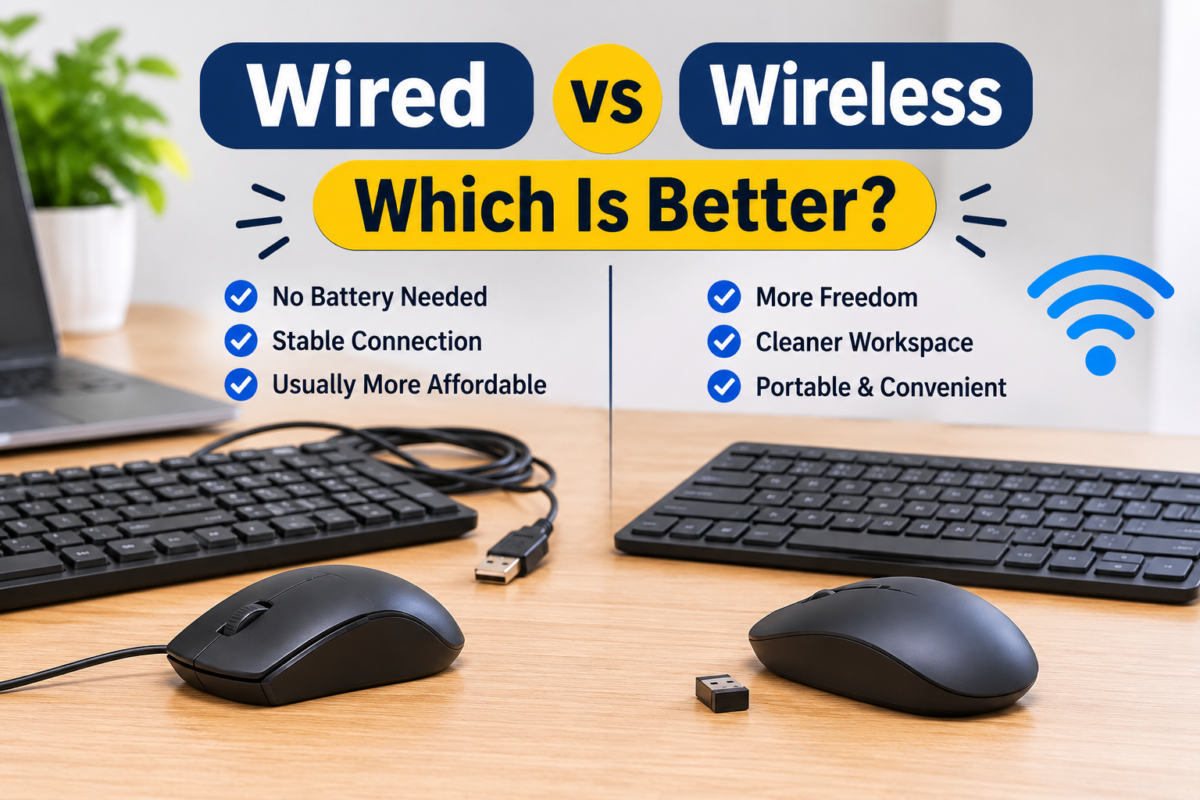
There is no single winner in the wired vs wireless keyboard and mouse debate, because the right choice depends on where and how you work. Here is the quick version:
- Pick wired if your computer stays on one desk, you hate charging things, or you game competitively.
- Pick wireless if you use a laptop, carry your setup around, or simply like a clean desk.
- Using a MacBook? A Bluetooth mouse is usually the easiest choice, because it does not need a USB port.
The rest of this guide explains why, and answers the questions customers ask us most: how long a wireless mouse lasts, which one to choose, and what works best with a MacBook.
Why this choice matters more than you think
Most people spend an hour comparing laptops and five minutes picking a keyboard and mouse. But your hands touch these two things for every hour you work. A laggy mouse or a keyboard that tires your wrists can spoil your day far more than a slightly slower processor. So it is worth getting this right.
How wired and wireless actually differ
A wired keyboard or mouse connects with a cable, usually USB. You plug it in and it works. There is no battery and no pairing.
A wireless one has no cable, but it connects in one of two ways, and people often mix these up:
- 2.4 GHz USB receiver: a tiny dongle sits in a USB port and the device talks to it. A keyboard and mouse combo usually shares one receiver.
- Bluetooth: the device connects straight to your laptop, tablet or phone. No dongle, so no USB port is used.
This detail matters. A receiver mouse and a Bluetooth mouse can behave quite differently, so always check which type you are buying.
Wired keyboard and mouse: the good and the not-so-good
What you will like
- No batteries, no charging. It never dies halfway through your work.
- Plug and play. It works straight away, even in BIOS and boot menus.
- Steady and responsive. There is no pairing and no signal to drop.
- Usually costs less than a similar wireless model.
What you might not like
- Cable clutter on the desk.
- Limited reach. The cable length decides where you can sit.
- Awkward to carry, since cables tangle in a laptop bag.
Wireless keyboard and mouse: the good and the not-so-good
What you will like
- A cleaner desk with fewer cables.
- Freedom to move. Handy for presentations, or when you want to sit back from the screen.
- Easy to carry, especially compact Bluetooth models.
- Works with more than one device. Many Bluetooth models can switch between a laptop, tablet and phone.
What you might not like
- Batteries or charging need your attention.
- Pairing hiccups can happen after a restart or an update.
- Possible lag or interference on poor-quality devices.
- A USB port may be taken by the receiver, which matters on slim laptops with few ports.
Wired vs Wireless Keyboard and Mouse: Quick Comparison
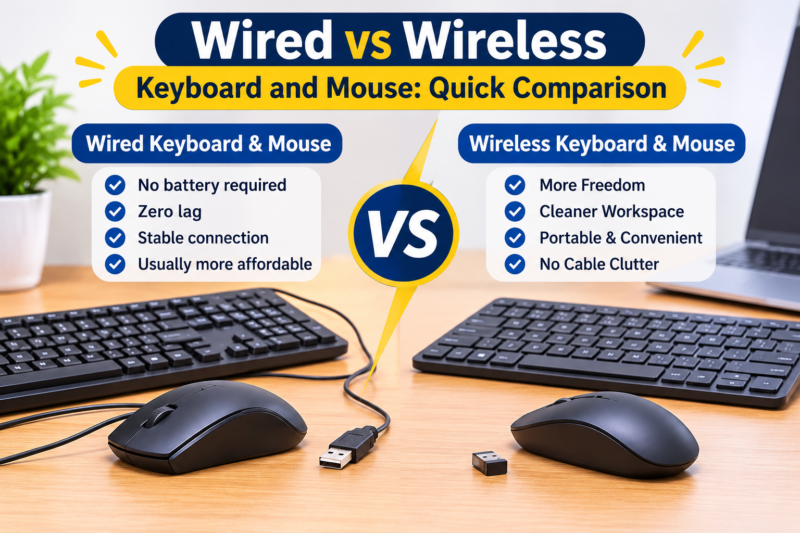
| Factor | Wired | Wireless |
|---|---|---|
Setup | Plug and play | Pairing or receiver needed |
Power | No battery | Batteries or charging |
Reliability | Very steady | Good on quality models |
Response speed | Excellent | Good to excellent on quality models |
Portability | Cables can tangle | Easy to carry |
Desk look | Cables visible | Cleaner |
| Best for | Offices, desktops, gaming | Laptops, travel, tidy setups |
How long does a wireless mouse last?
Honestly, it depends. The battery type, the model and how many hours a day you use it all change the answer, so be wary of anyone who gives you one fixed number. Here is a realistic way to think about it.
- Replaceable batteries (AA or AAA): makers often rate these for several months, and some models claim a year or more. If you use the mouse all day, expect less than the claim.
- Built-in rechargeable battery: these usually need a top-up every few days to a few weeks, depending on the model and your use. Most charge over a USB cable.
- Wireless keyboards: they often last longer than mice because they draw less power. A backlit keyboard drains faster, so check whether the light can be turned off.
Always look at the maker’s stated battery life for the exact model, and remember that real life is usually a little shorter.
What drains the battery faster? Colorful RGB lighting, high-speed gaming modes, long daily use, and leaving the mouse switched on when you are away from the desk.
How to make the battery last longer:
- Switch the mouse off when you finish for the day.
- Turn off RGB lighting if your mouse has it.
- Use a clean, flat surface or a mouse pad.
- Use good-quality batteries, and do not mix old and new ones.
- Keep a spare battery or a charging cable at your desk.
Which wireless mouse should you choose?
We will be honest: there is no single best wireless mouse. The best one is the one that fits your hand and your work. So instead of chasing a name, match the mouse to how you use it.
- Everyday office or home use: a simple, comfortable mouse with a USB receiver or Bluetooth is plenty. Pick a known brand with a clear warranty.
- Students and travel: a compact Bluetooth mouse that slips into a bag and connects to a laptop and a tablet.
- Long hours at the desk: an ergonomic or vertical mouse can ease wrist strain. Try it first, because it feels very different from a regular mouse.
- Quiet places like offices and libraries: a silent-click mouse.
- Several devices: a mouse that can switch between two or three devices.
- Gaming: look at sensor quality and response speed, and compare wired and wireless gaming models for the exact one you like.
- Spreadsheets and design work: extra buttons and adjustable DPI can save time.
Check these before you buy any wireless mouse:
- Connection type: USB receiver, Bluetooth or both.
- Battery type and the stated battery life.
- Size and shape for your hand.
- Sensor quality and DPI range.
- Warranty, and whether a lost receiver can be replaced.
Which mouse works best with a MacBook?
This is a very common question, and the good news is that most mice work with a MacBook. A few details make life easier.
- Bluetooth mice are the simplest. Pair them through System Settings. There is no dongle, so no port is used.
- Receiver mice may need an adapter. Many MacBooks only have USB-C ports, while most receivers use USB-A. A small adapter or hub solves it. Check the ports on your exact MacBook first.
- Apple’s Magic Mouse is made for macOS and supports swipe gestures. Some people find its flat shape tiring over long hours, and on many versions the charging port sits underneath, so try one in person if you can.
- Other brands work fine too. Extra buttons and gestures may need the brand’s own software.
- Scroll direction: macOS uses natural scrolling by default, which can feel reversed if you come from Windows. You can change it in settings.
A simple rule: want zero hassle? Choose Bluetooth. Want gestures? Look at the Magic Mouse. Work for long hours? Prioritize comfort over everything else.
Which one is right for you?
- Office or desktop worker: wired. It is dependable and needs no upkeep.
- Student with a laptop: a wireless mouse is a great upgrade, because a laptop touchpad gets tiring. A compact Bluetooth set is easy to carry.
- Gamer: wired is the safe choice for competitive play. Some wireless gaming mice are very good, so check the specific model.
- Programmer or heavy typist: the keyboard feel matters more than the connection type. Test it in person.
- Presenter: wireless, so you can move around the room.
- MacBook or multi-device user: Bluetooth is usually the most convenient.
Common problems and simple fixes
- Mouse will not connect: change the battery, switch it off and on, and pair it again.
- Cursor lags or jumps: move the receiver to a nearer USB port, clean the sensor and use a plain surface.
- Bluetooth keeps disconnecting: remove the device from Bluetooth settings and pair it again.
- Lost receiver: check whether the brand sells a replacement, or whether the mouse also supports Bluetooth.
- Keyboard types the wrong characters: check the keyboard layout and language settings on your device.
If the problem continues, check your warranty and take it to the store where you bought it.
Combo or separate devices?
A keyboard and mouse combo is simple and often more affordable, because one receiver serves both. Buying separately lets you match each to your hand and your work. If you type a lot, it can be smart to spend a little more on the keyboard and keep the mouse simple.
Our honest verdict
For most people, the wired vs wireless keyboard mouse decision comes down to one question: does your setup move? If it stays on one desk, wired is hard to beat for reliability and value. If it travels with you, or you want a tidy desk, wireless makes life easier. Plenty of people use both, with a wired set at the main desk and a small Bluetooth set in the laptop bag.
Try them in person in Kanpur
Comfort is personal, and the best test is holding the mouse and typing on the keyboard yourself. At Well Known Computers in Kanpur, you can compare keyboards, mouse and keyboard and mouse combos and get plain advice based on your work. Visit our stores at Somdutt Plaza, Kakadeo or Govind Nagar, or call +91 93358 37020. Please confirm current models and availability with the store before visiting.
If you are upgrading your laptop too, read our guide on how to choose a laptop.
Frequently asked questions
1. Is a wired or wireless keyboard and mouse better?
It depends on your use. Wired is steadier and needs no battery, so it suits offices and gaming. Wireless is better for travel, laptops and a tidy desk.
2. How long does a wireless mouse battery last?
It varies by model and use. Mice with replaceable batteries are often rated for several months, and rechargeable ones usually need charging every few days to a few weeks. Check the stated battery life of the exact model.
3. Which wireless mouse is best?
There is no single best one. Choose by use: a compact Bluetooth mouse for travel, an ergonomic one for long hours, a silent-click mouse for quiet places and a high-sensor mouse for gaming.
4. Which mouse is best for a MacBook?
A Bluetooth mouse is the simplest because it needs no USB port. Apple’s Magic Mouse offers gestures, and other brands work well too. Pick one that fits your hand.
5. Will a USB receiver mouse work on a MacBook?
Yes, but many MacBooks only have USB-C ports, so you may need a USB-C adapter or hub.
6. Is a wireless mouse slower than a wired one?
A good wireless mouse feels almost the same for everyday work. For competitive gaming, many players still prefer wired for the most consistent response.
7. Is Bluetooth or a USB receiver better?
A receiver is simple and often steady. Bluetooth saves a USB port and is handy for using one mouse with a laptop and a tablet.
8. How can I make a wireless mouse battery last longer?
Switch it off after use, turn off RGB lighting, use a clean surface and use good-quality batteries.
9. Which is better for students, wired or wireless?
A wireless mouse is usually more convenient for laptop users. For a fixed study desk, wired is a low-maintenance choice.
Which one should you buy?
The right pair is the one that fits how you work. Think about where you sit, how much you type, whether you travel and whether you use Windows or a MacBook. Test the keyboard and mouse in person, check the battery details and the warranty, and the wired vs wireless keyboard mouse choice becomes easy.
For more info call us : +91 93358 37020 or visit our store: somdutt plaza, parade , Kanpur Nagar
Kakadeo Store & Goving Nagar Near, Chawal Chauraha